App interface & controls
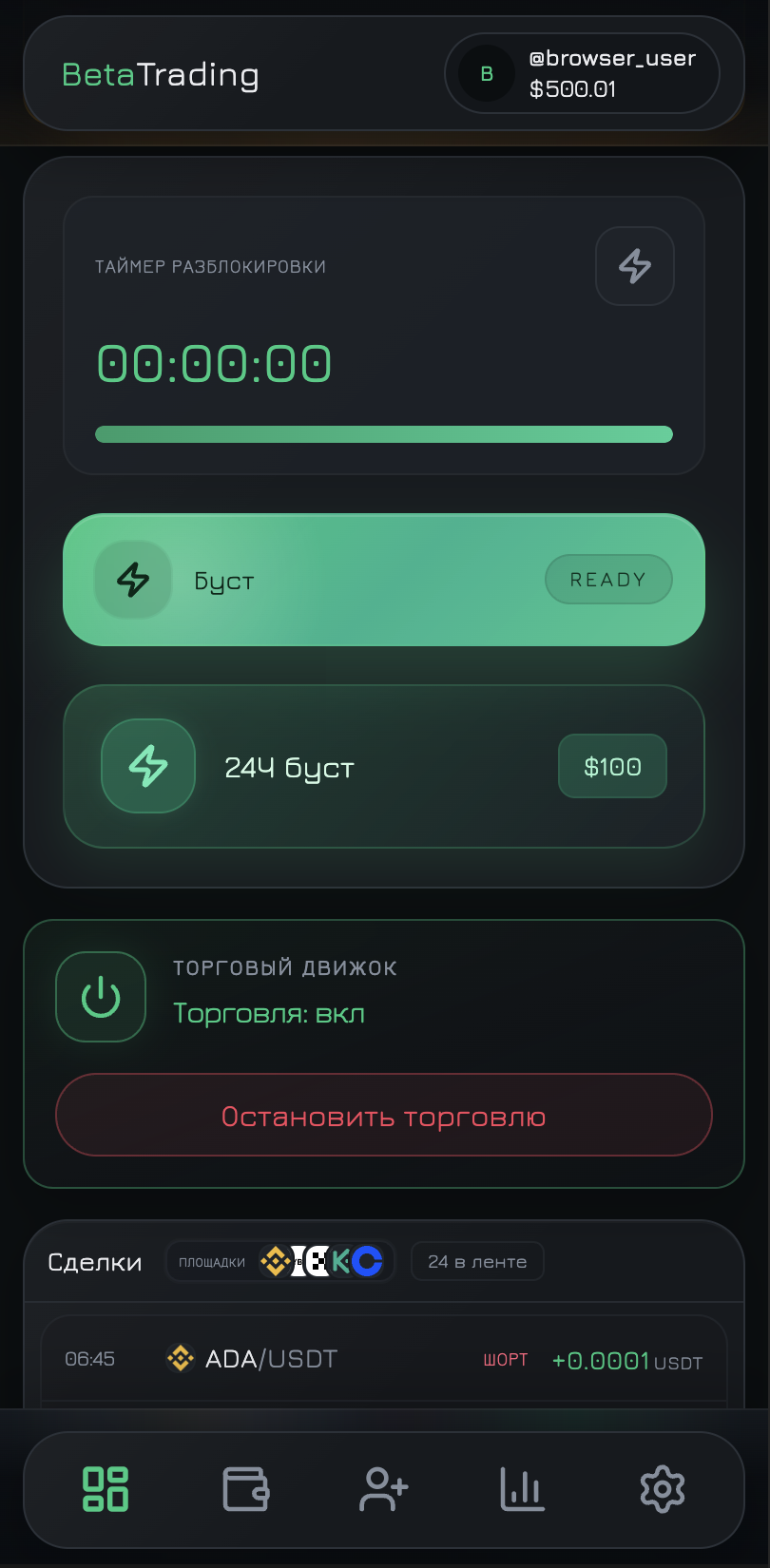
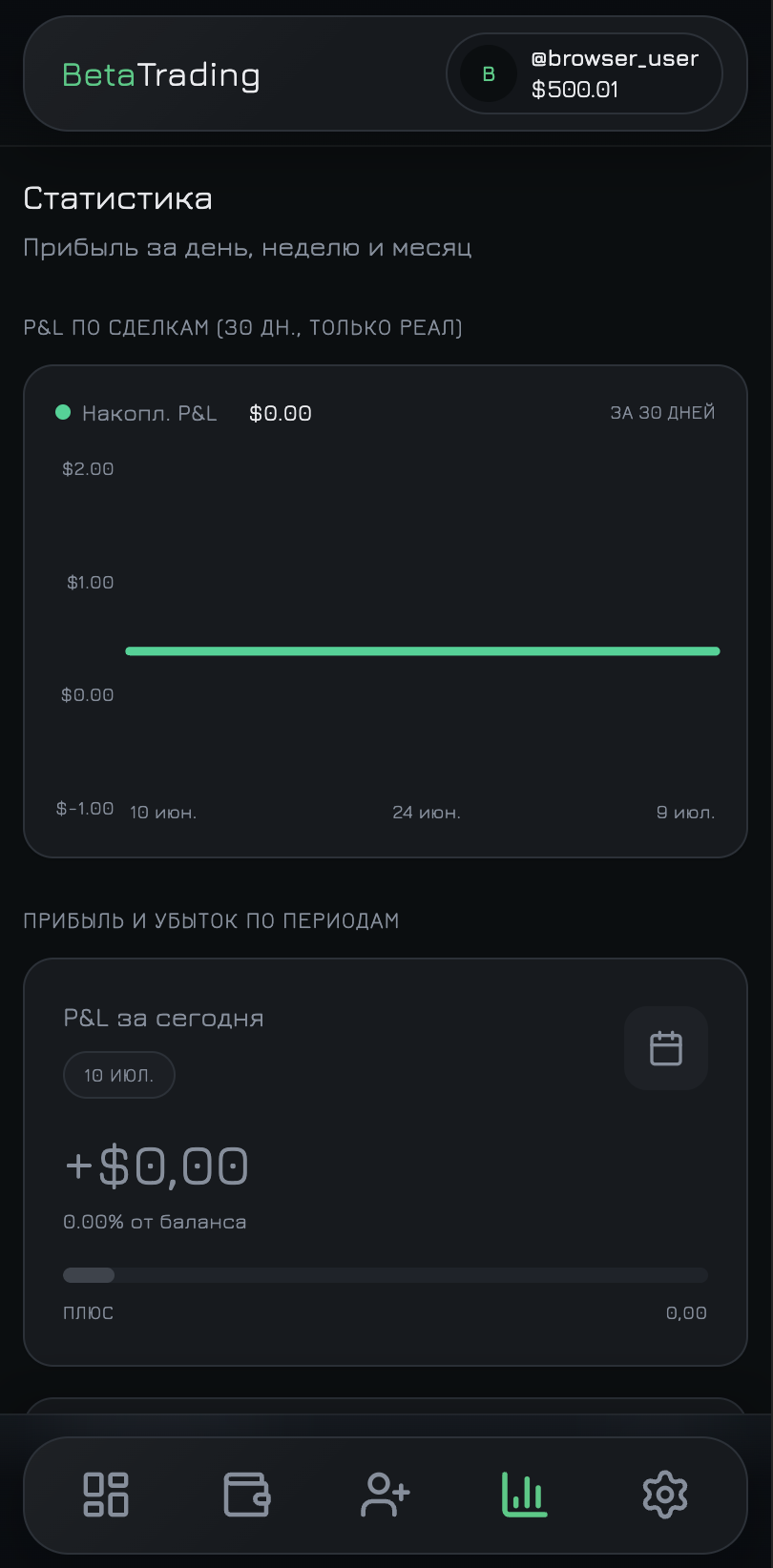
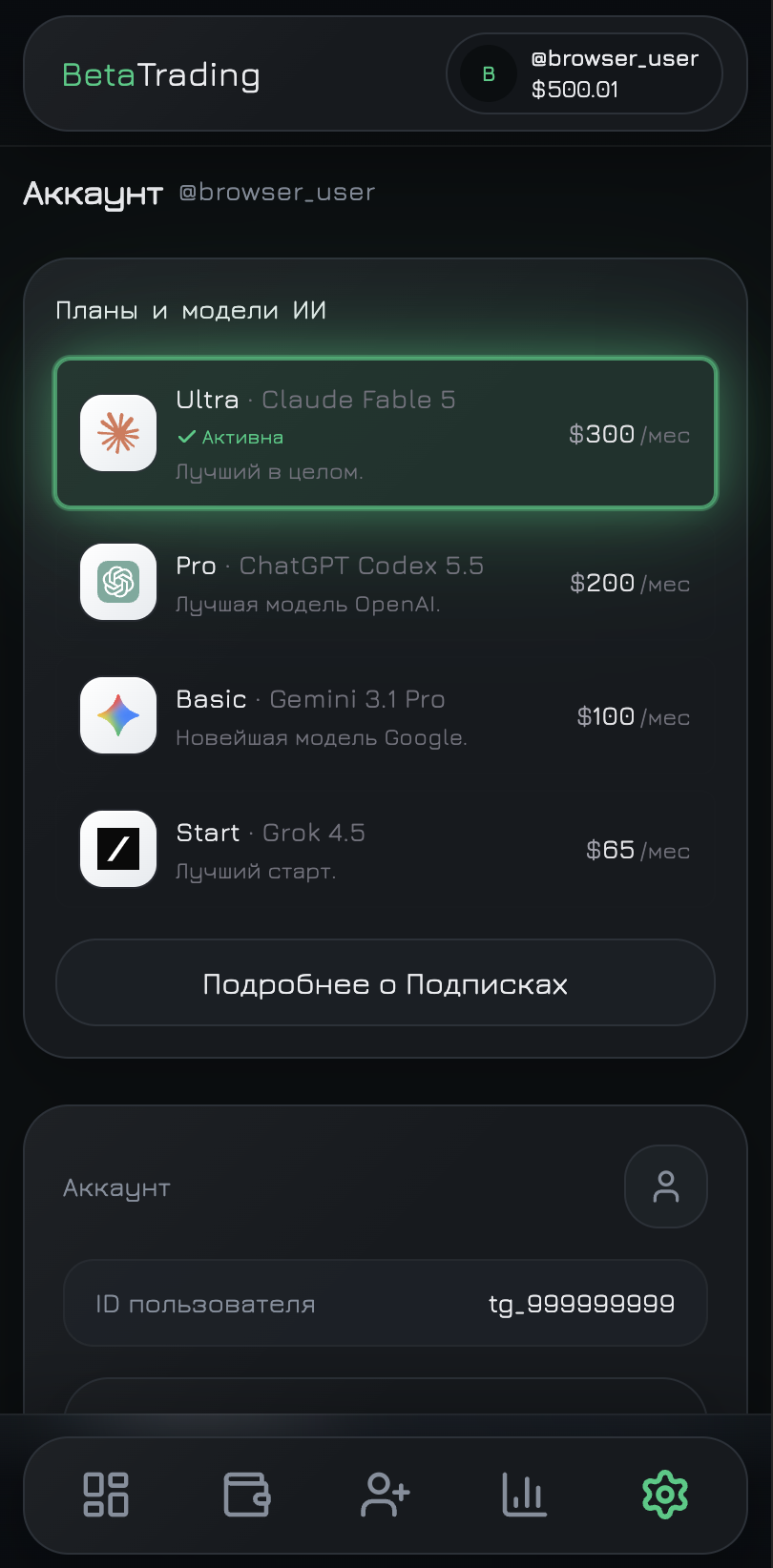
The Mini App and web dashboard share the same layout.
Five main tabs — same in Telegram and browser.
1
2
Market intel & status screens
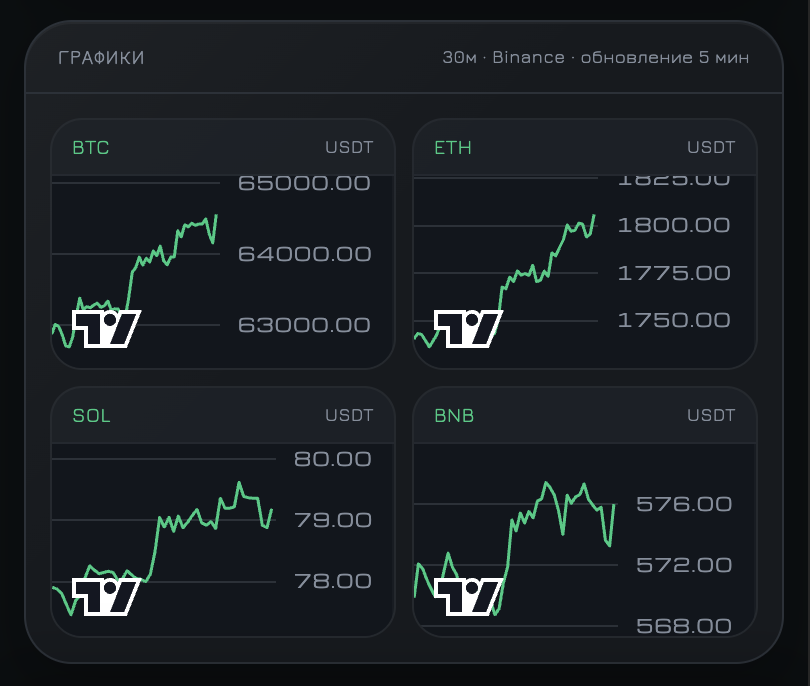
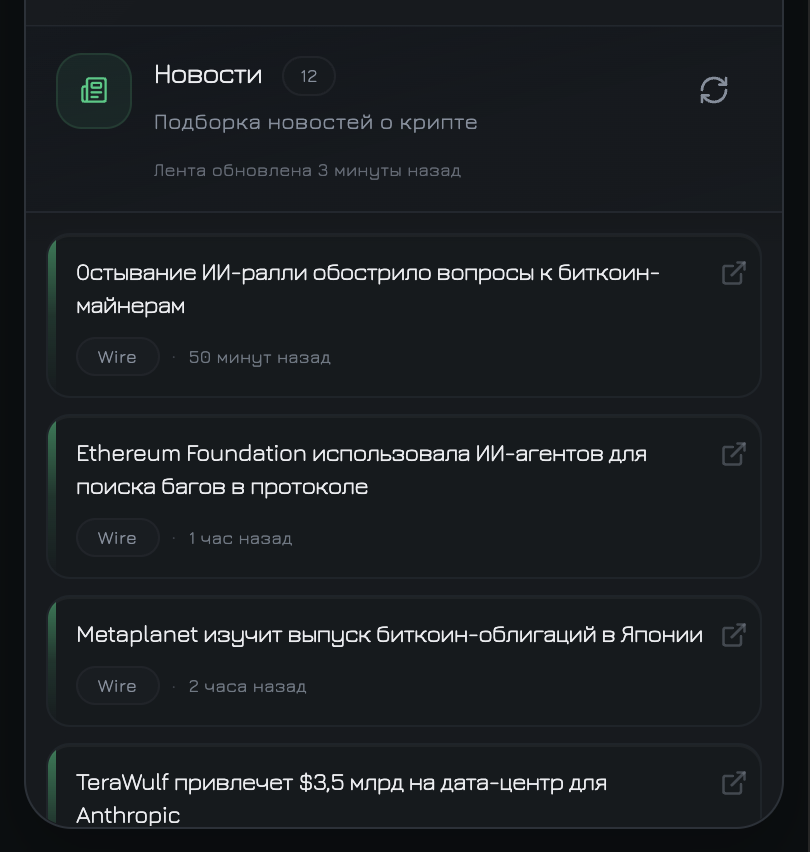
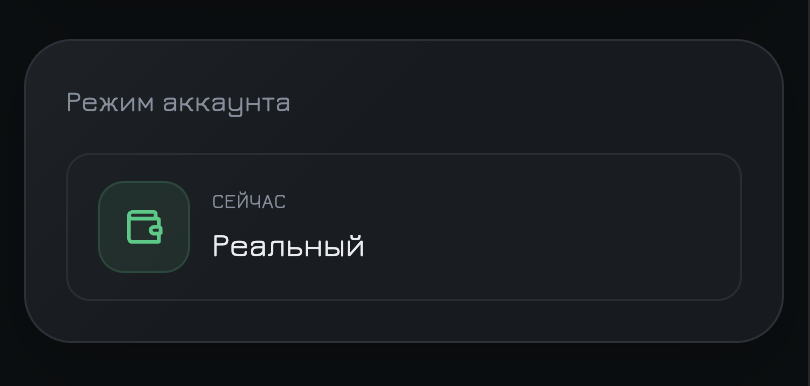
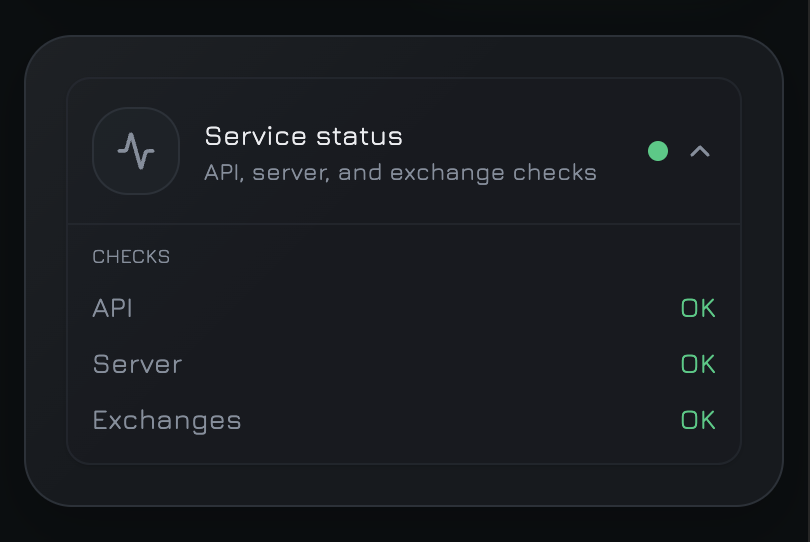
Step-by-step guide for Telegram, the web app, deposits, trading, withdrawals, referrals, and subscription.
Tip: tap any image to view it full size. Tall captures are real phone frames; in-app layout may vary by device.
The Mini App and web dashboard share the same layout.
Five main tabs — same in Telegram and browser.
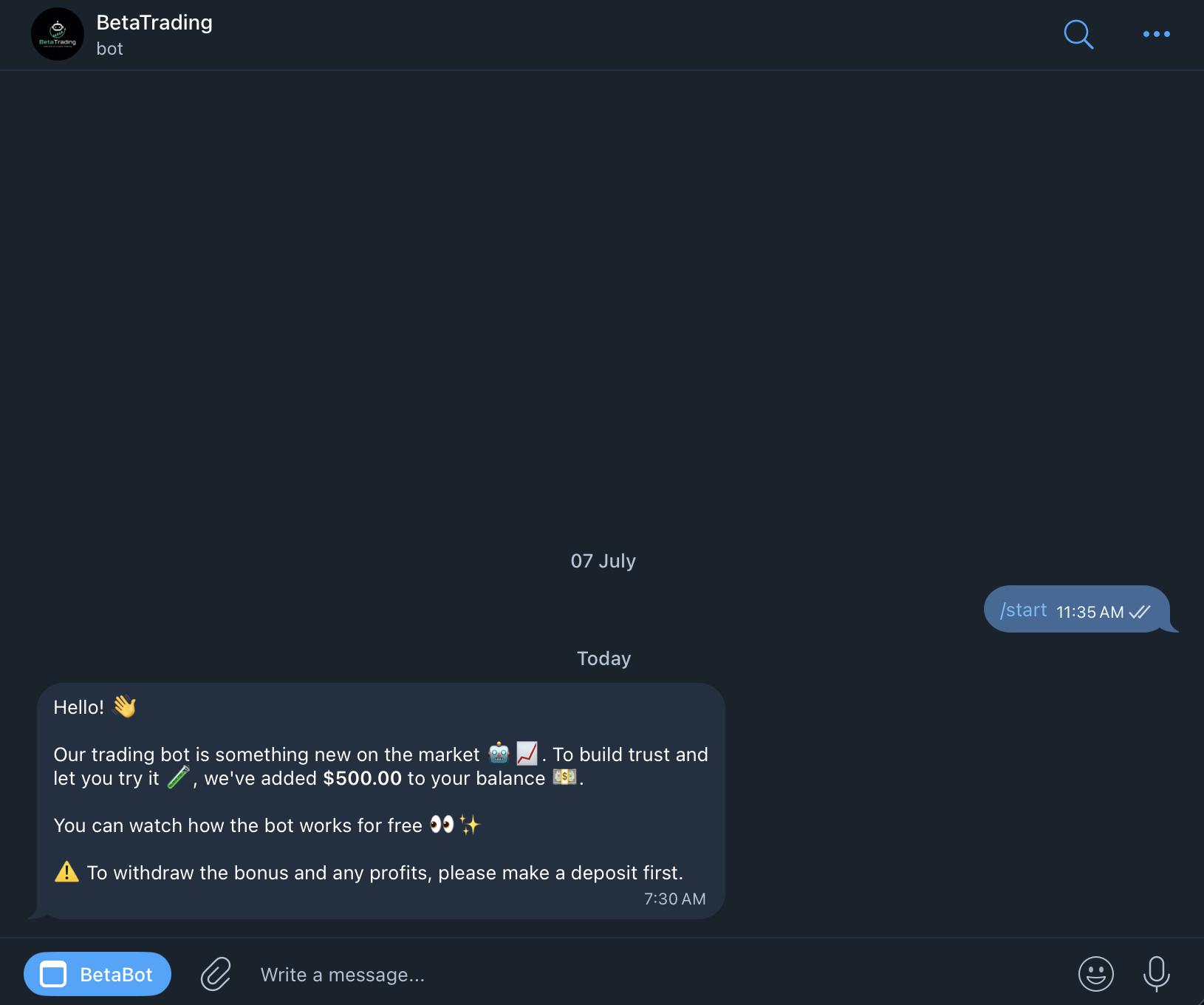
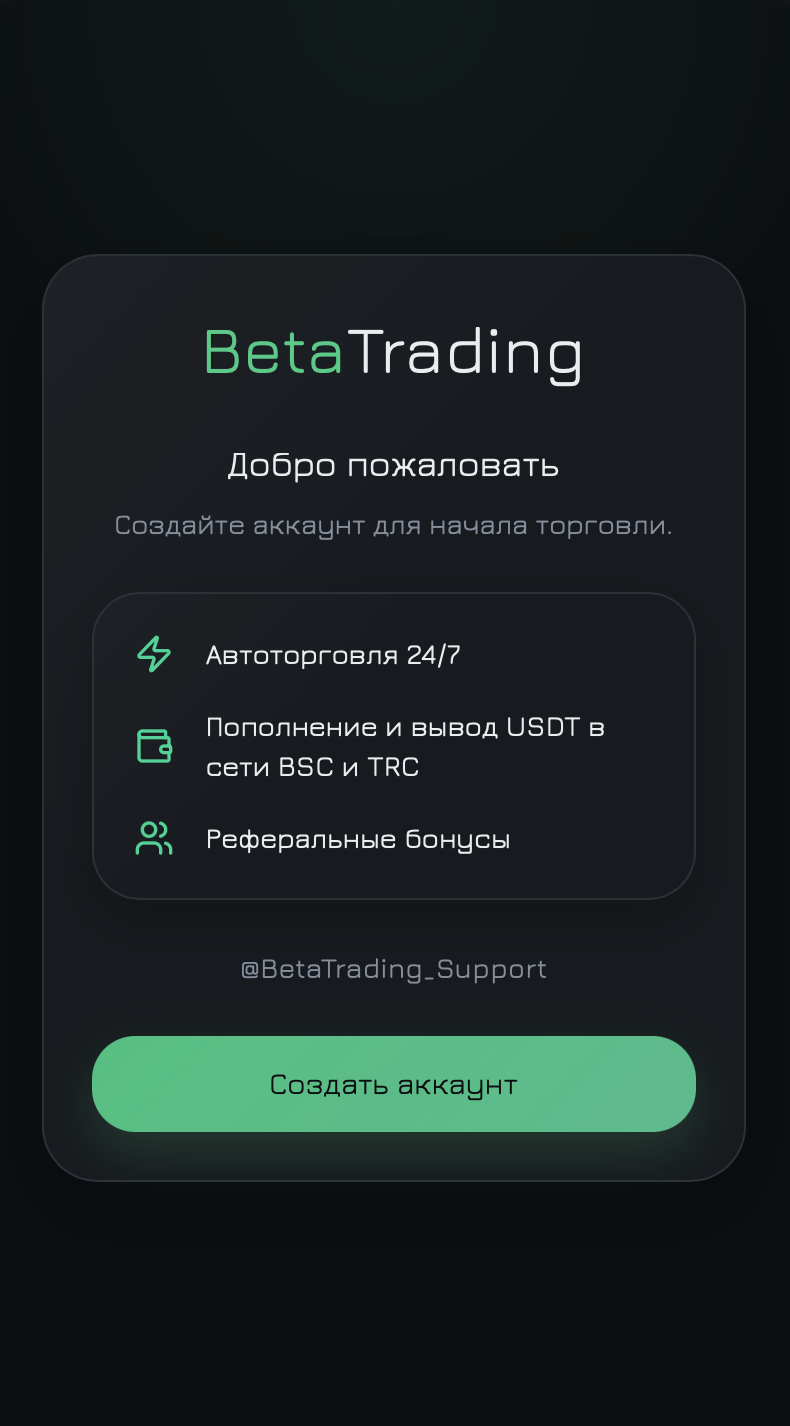
Create your account from the official bot and open the Mini App or web dashboard.
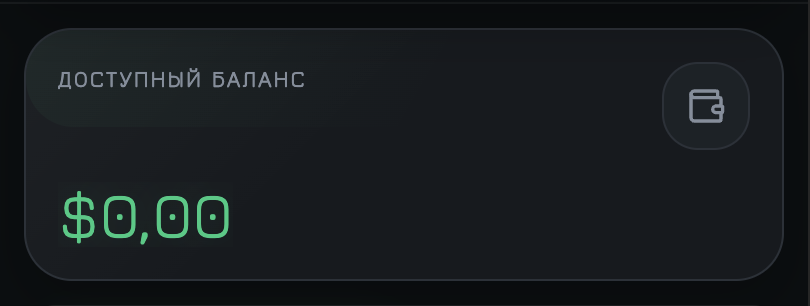
The main screen shows balance, mode, and navigation between Wallet, Trades, Market, and Settings.
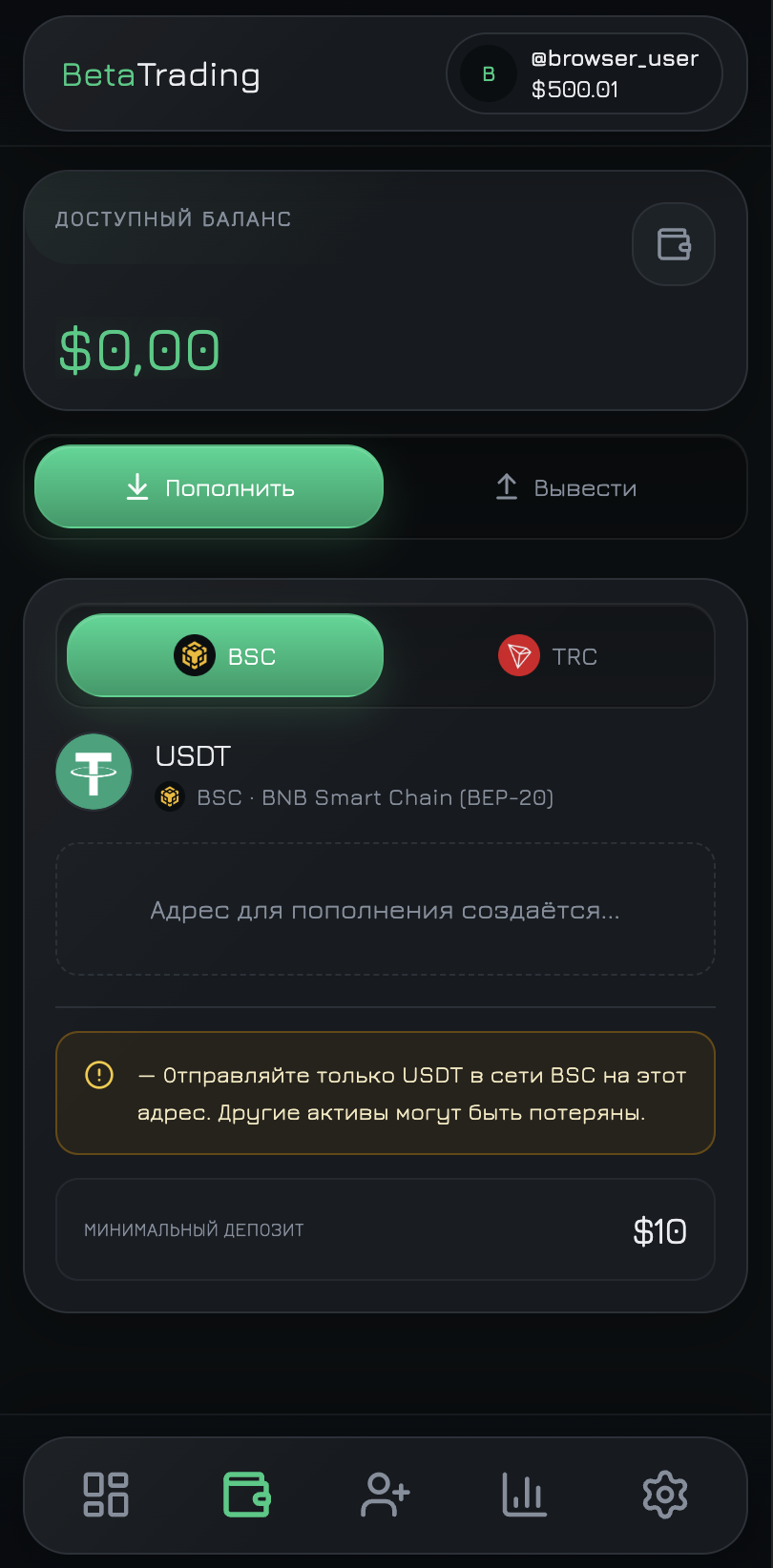
Send only USDT on the network shown for your address — wrong token or chain can mean permanent loss.
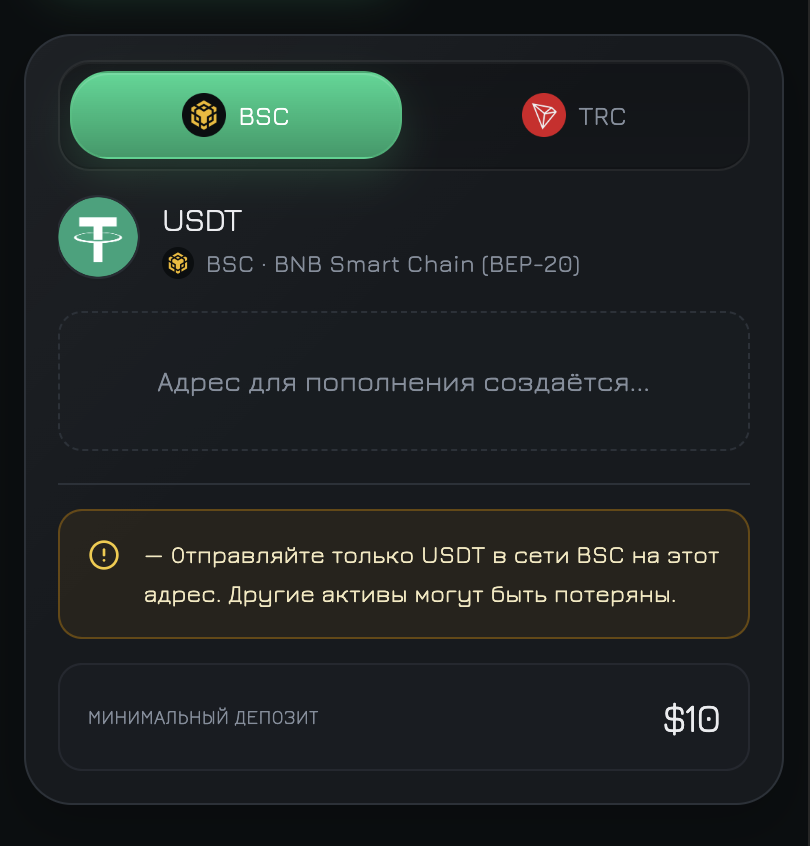
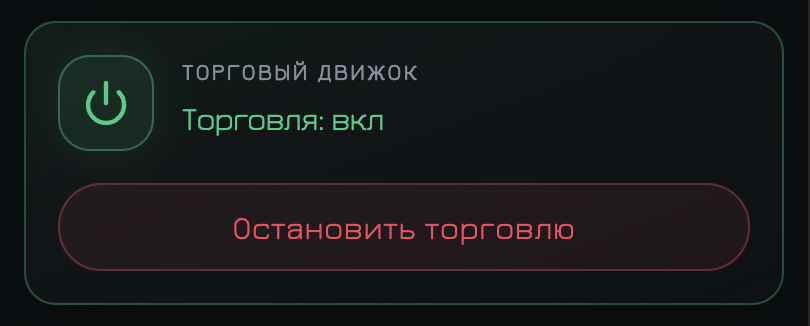
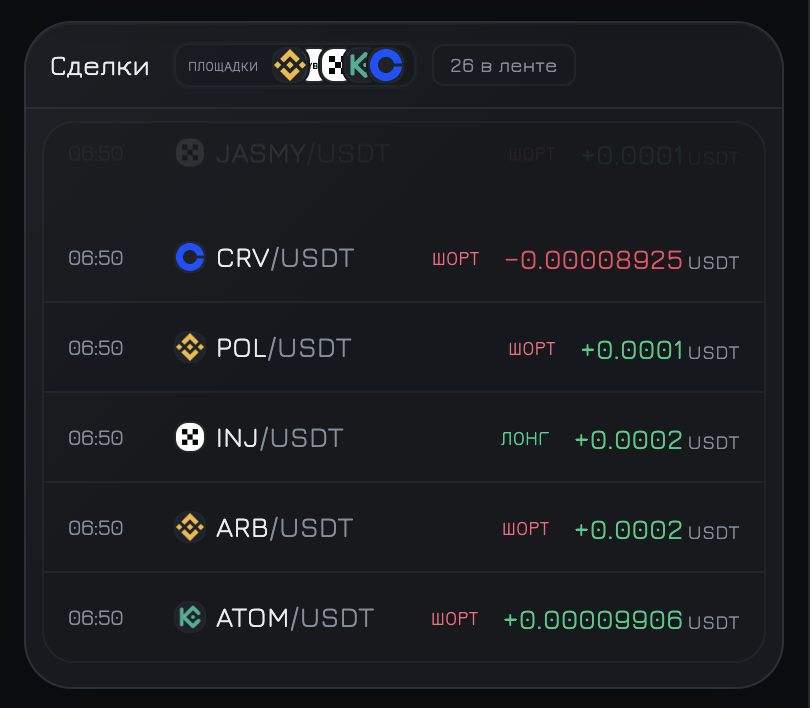
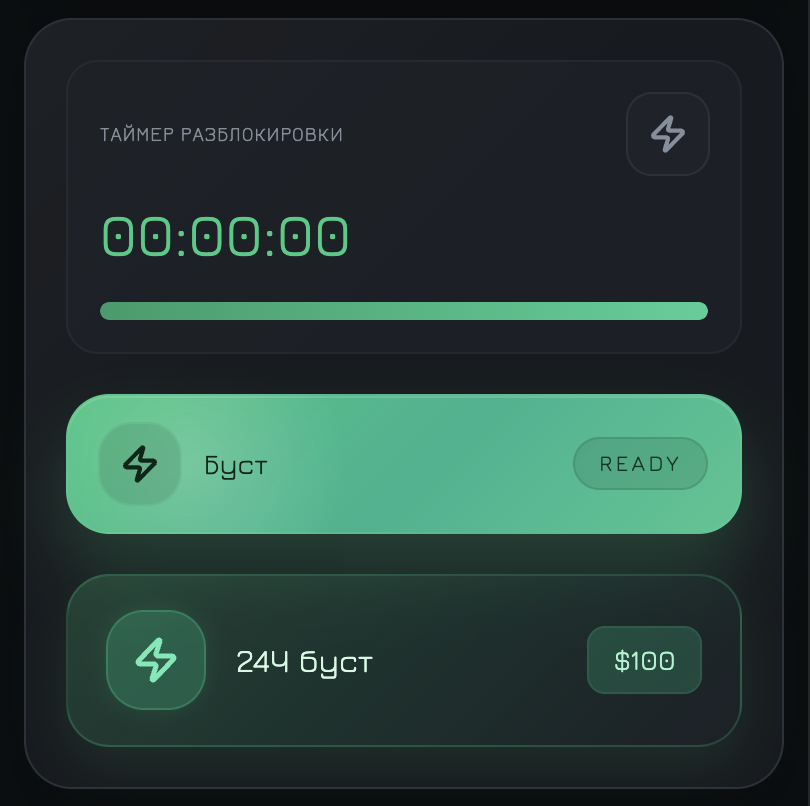
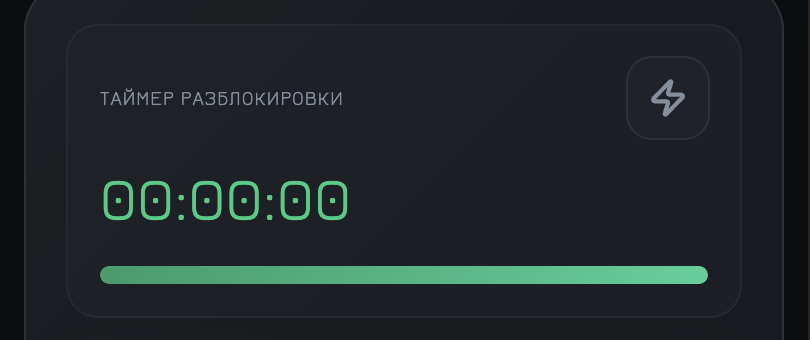
Monitor automated activity, performance, and optional short-term boost where available.
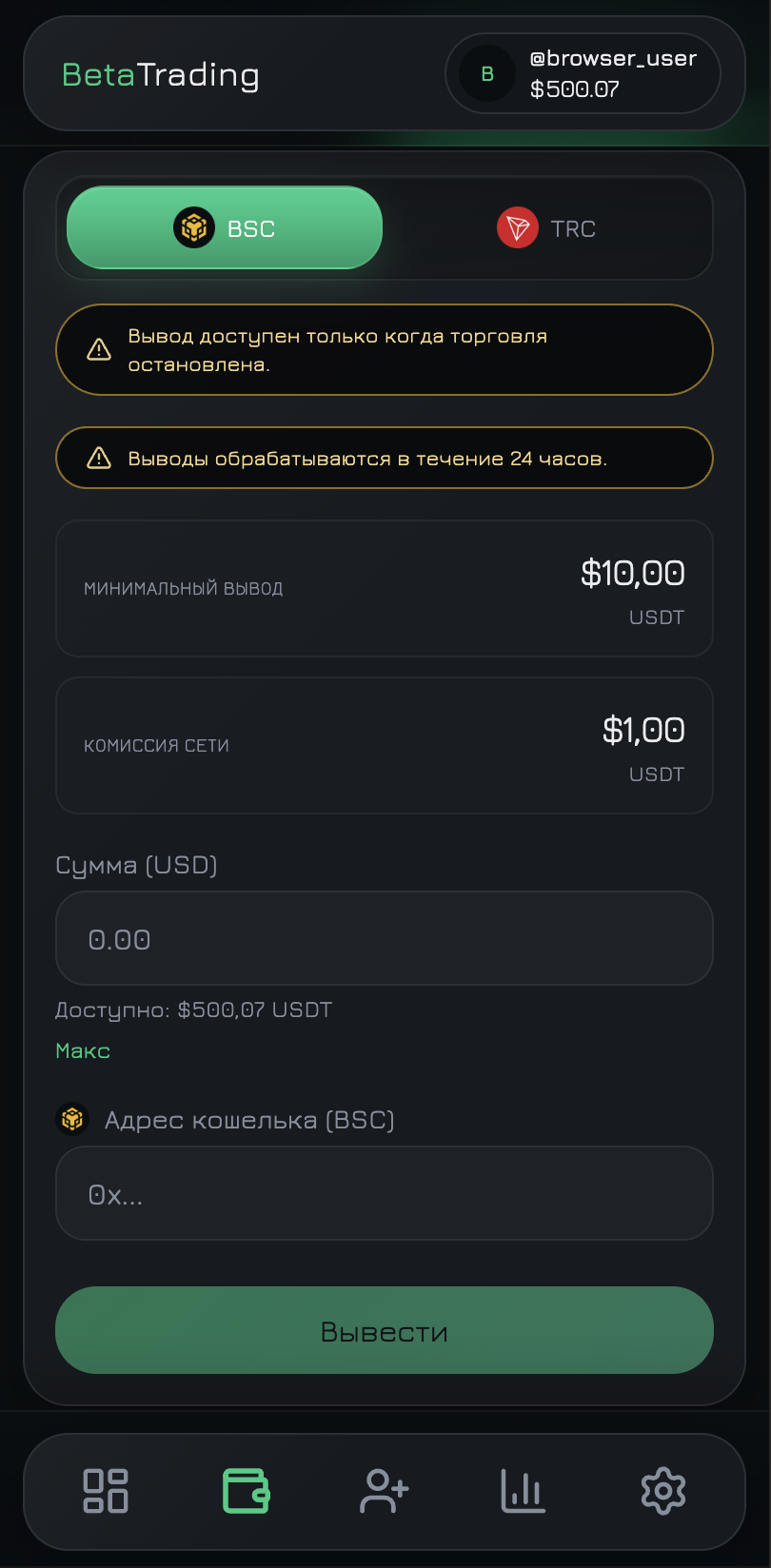
Request a payout to your own external USDT wallet on the same network class you select.
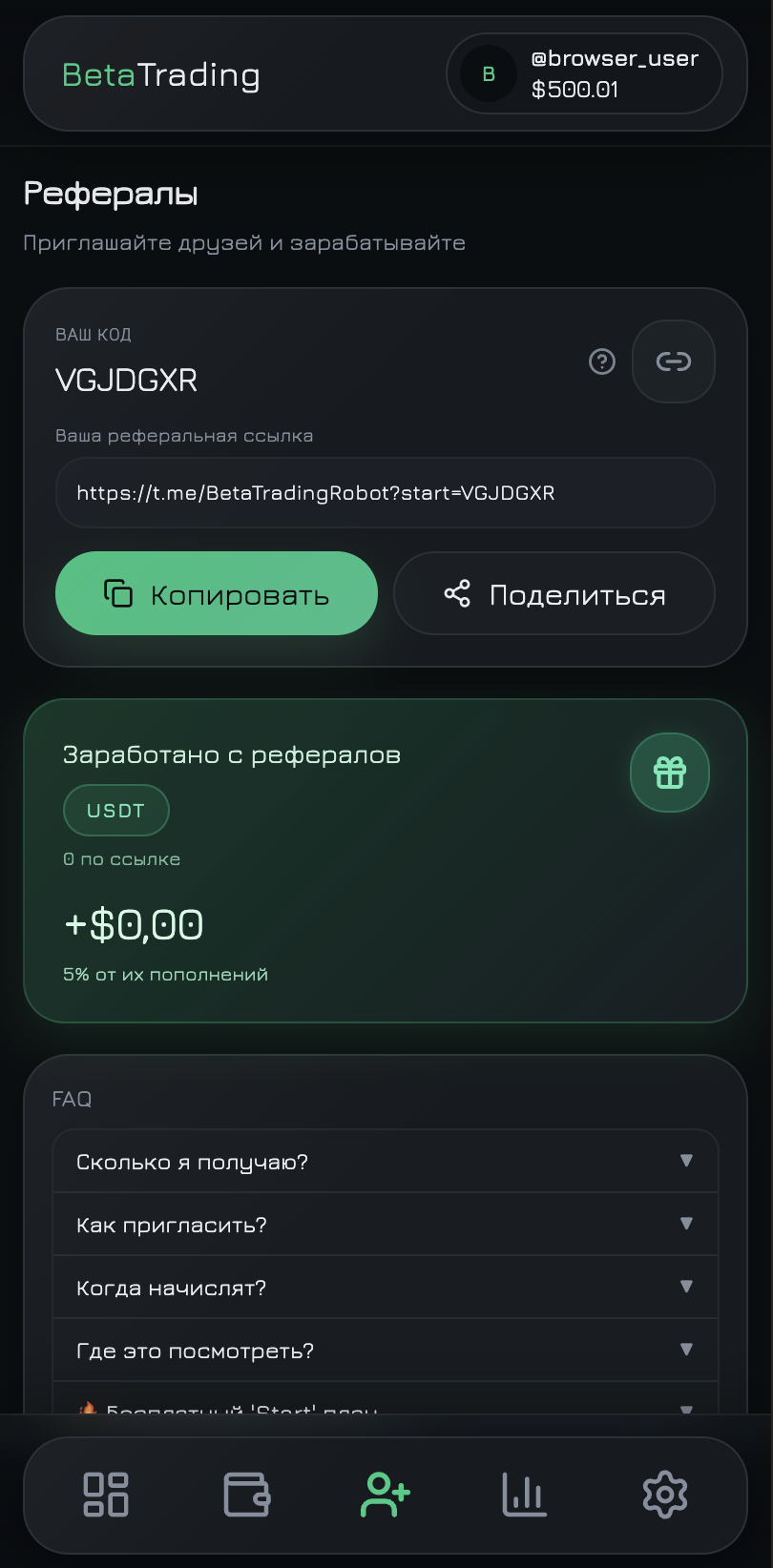
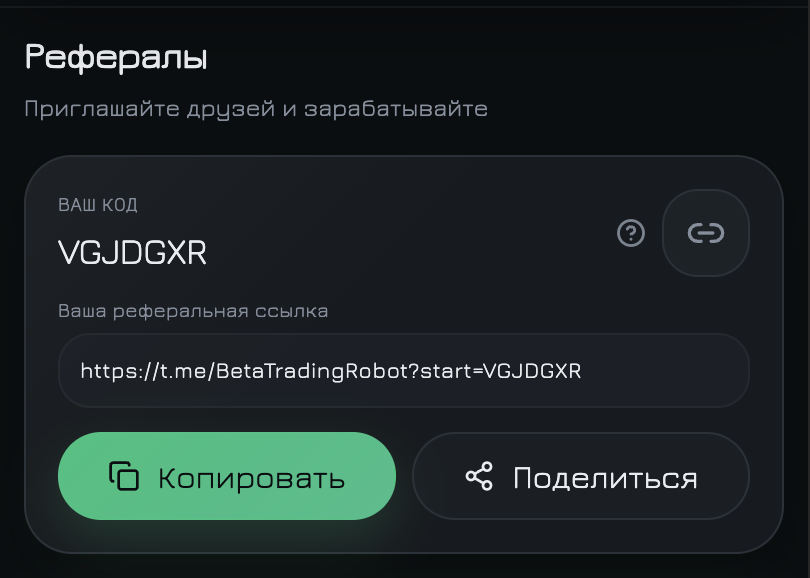
Share your personal link and track rewards from invited users.
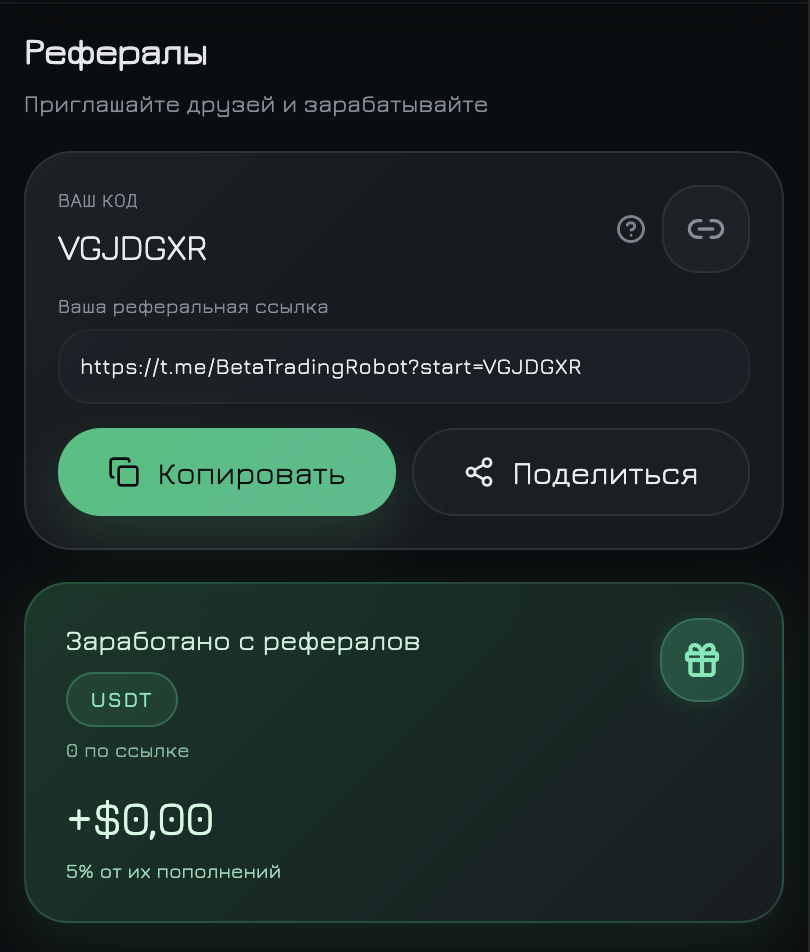
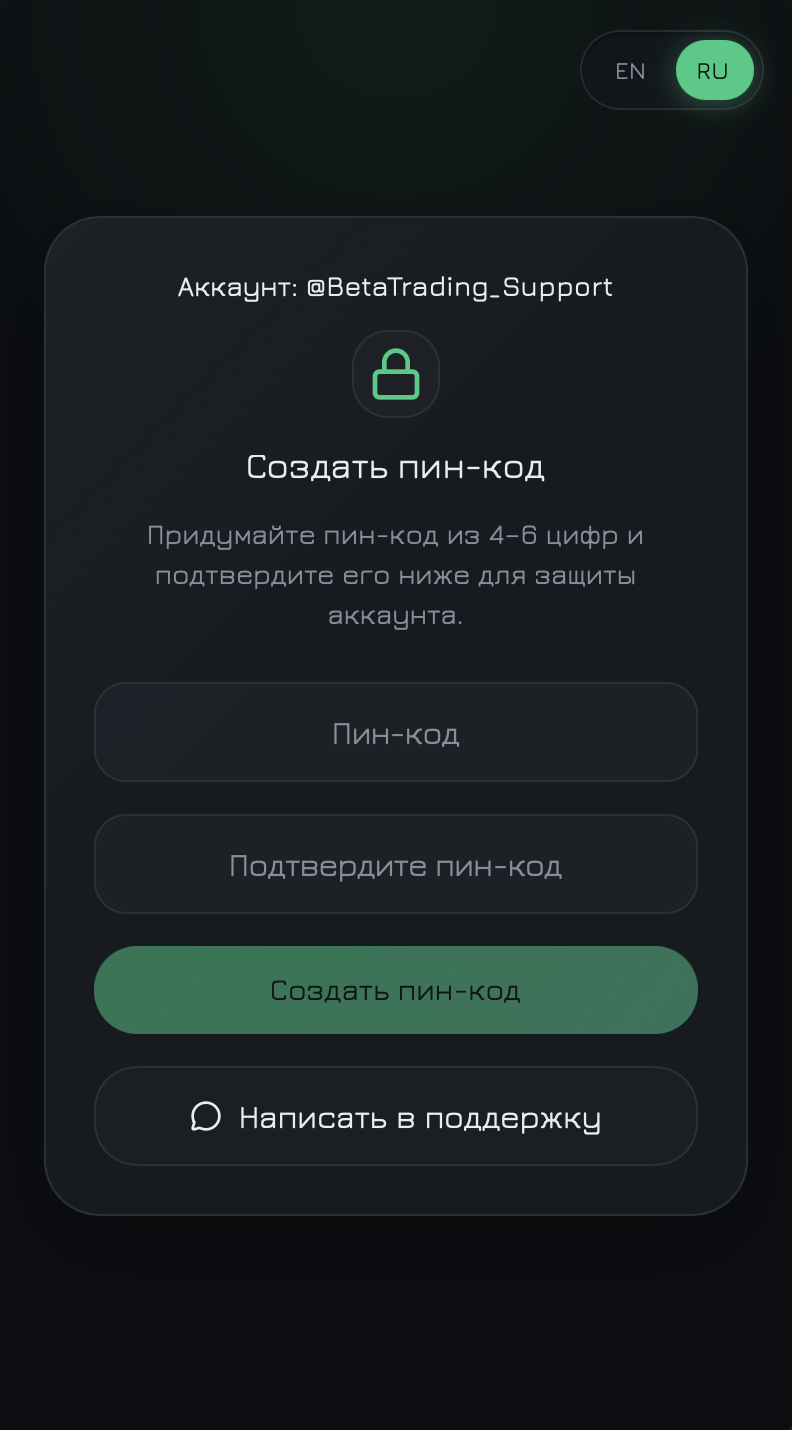
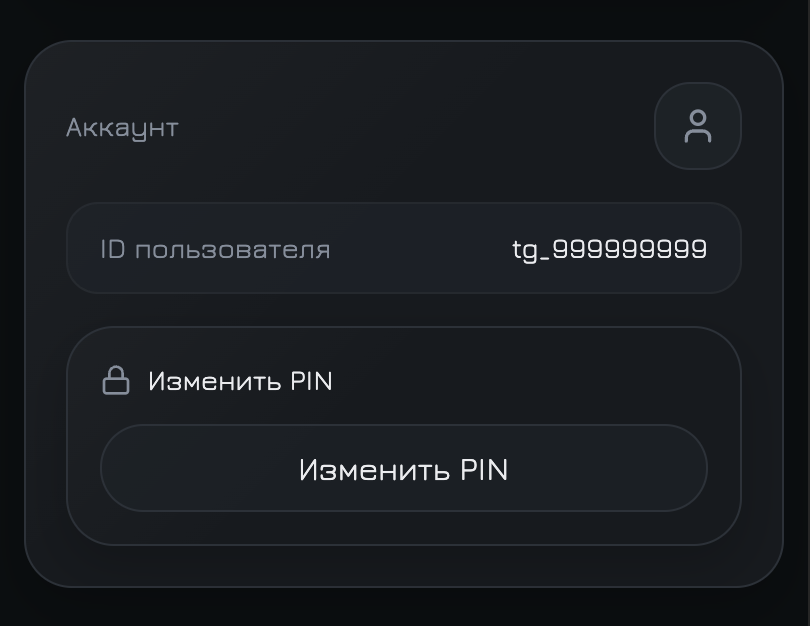
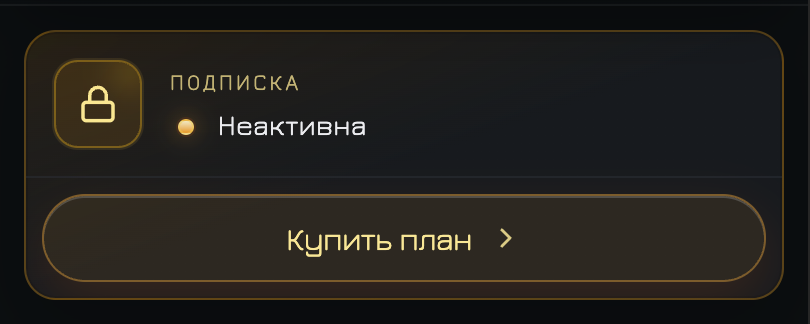
Secure the app with a PIN, manage language, and keep your plan active for uninterrupted access.
PIN & security

Subscription & trial
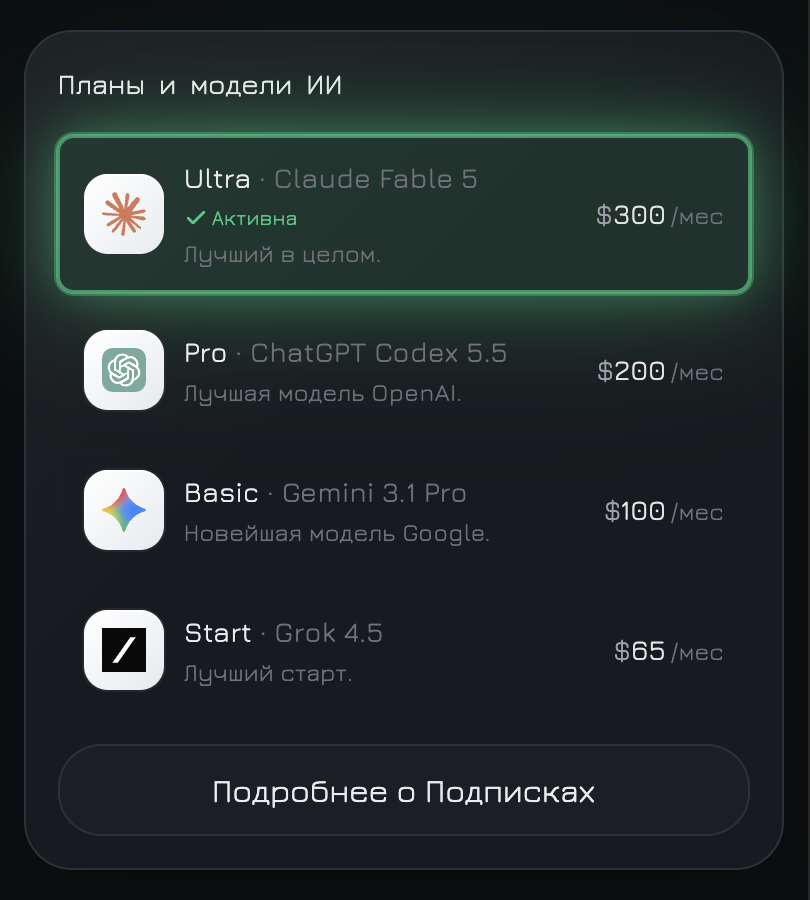
AI plans & charges from balance